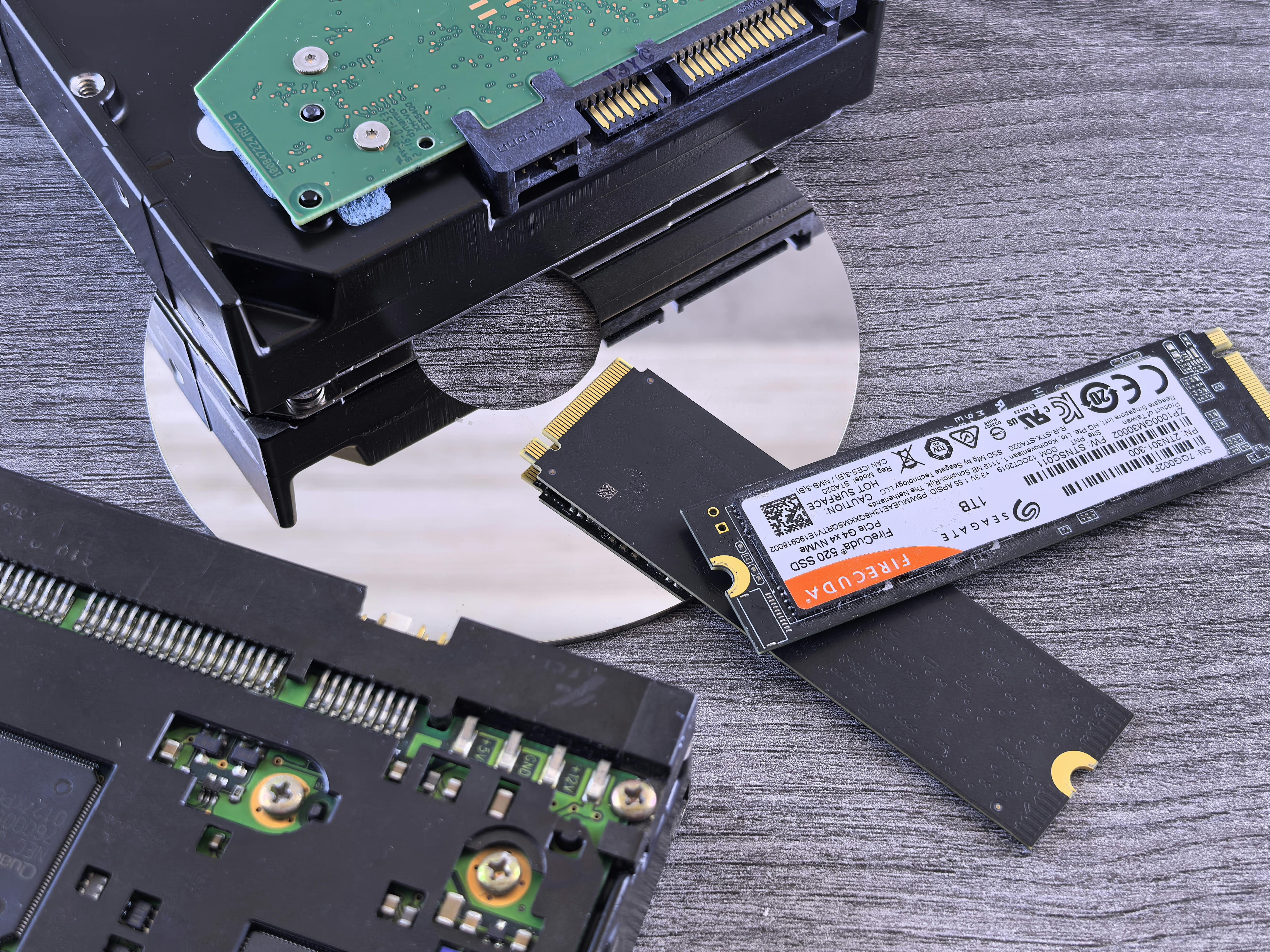
Solid-state drives are faster, quieter and physically tougher than mechanical drives — but they fail in ways most IT teams are not trained to spot. Instead of clicking noises there are cryptic SMART attributes; instead of a slow decline there is often a single, silent moment where the drive simply vanishes from the operating system. Here are the five early warning signs our recovery engineers see week after week, and what to do the moment you spot them.
1. Slow, unexplained write speeds
A healthy NVMe drive should write sequentially at 1.5 GB/s or higher. If yours has dropped to 100 MB/s for no obvious reason and the CPU / RAM look fine, the NAND cells are likely exhausting their program-erase cycles or the DRAM cache has failed.
Check the drive's SMART attribute 'Percentage Used' (attribute 202 or 231 depending on vendor). Anything above 90 percent means the endurance rating is nearly consumed — plan a migration this week, not this quarter.
2. Sudden read-only mode
When an SSD's controller detects catastrophic wear or a firmware fault, many models 'brick' themselves into a permanent read-only state as a last-resort protection. You can still copy files off it, but writes silently fail.
The moment your OS reports 'This disk is write-protected' with no obvious BitLocker or physical switch cause, image the drive within the hour. Read-only mode can flip to complete lock-out at the next reboot.
3. Files corrupt for no reason
Small ZIPs open fine, huge project files won't. Photos show green squares. Word documents ask for the recovery pane. These are almost always symptoms of a failing DRAM cache or bad wear-levelling table — the controller is stuffing valid data into cells that no longer hold it reliably.
This one is dangerous because backups may already be inheriting the corruption. Compare hashes of critical files against a known-good copy immediately.
4. The drive disappears and reappears in BIOS
You reboot and the SSD isn't detected. Reboot again and it's back. Reboot a third time — gone. This 'flapping' behaviour points to a failing power management IC on the controller board or dying capacitors.
Every disappearance is a chance the drive never comes back. Once you see this pattern, shut down and do not power it on again until you have a plan to image it in one final session.
5. SMART throws 'Reallocated' or 'Media Wearout' spikes
Modern SSDs expose their health via NVMe SMART logs. Two attributes matter above all others: 'Media Wearout Indicator' and 'Reallocated Event Count'. If either jumps by more than 5 percent in a week, you are in the final decline curve.
Set up automated monitoring with tools like smartctl, nvme-cli or vendor consoles (Samsung Magician, Crucial Storage Executive, WD Dashboard). Alert on any daily delta above 1 percent.
What to do the moment you see any of these signs
- Stop all writes to the drive immediately — including antivirus scans, backup software, and OS-level indexing.
- Image the drive sector-by-sector to another healthy disk using ddrescue, DMDE or a hardware imager. Never rely on a file-level copy.
- Once you have a clean image, verify your business-critical files (accounts, source code, customer data) against a known-good backup.
- Retire the failing SSD from production even if it appears to still work — the trend line only goes one way.
- For SSDs that have already vanished from BIOS, contact a chip-off capable recovery lab. Do not try donor swaps — SSDs have per-drive encryption keys that make DIY board swaps futile.
Not sure what's wrong with your drive?
Get a certified engineer's opinion in 20 minutes — no obligation, no charge.
Frequently asked